How to Use Archiware with Geyser Data: A Step-by-Step Guide
- Kevin Thomas

- Dec 10, 2025
- 2 min read
Updated: Dec 17, 2025

Are you looking to leverage Geyser Data's robust cloud storage for your data needs while using the familiar Archiware interface? You're in the right place. In this guide, we'll walk you through the steps to configure Archiware to work seamlessly with Geyser Data, enabling you to manage your cloud storage efficiently and effectively. This document assumes you already have a Geyser Data account, created a Cloud Tape Library, and generated a pair of access / secret keys.
Step 1: Install and Launch Archiware
If you haven't already, download and install Archiware.
Once installed, open the application to begin the setup.
Step 2: Configure License
Once logged in, click on either Add Manually or Import from File:

Enter the serial number, product, and license key.

Click Apply
Click ‘Archive’ on the top menu bar

You are ready to create a Storage Manager as a target
Click on ‘Storage Manager’
Click on ‘Cloud Service’
Click on ‘New Service’

Complete the pop up form.
Things to note:
Virtual Host Style is disabled.
The service url is the endpoint in Geyser Data.
The Access key and Secret Keys are from the Geyser Data portal that we have created as part of our getting started process.
The bucket name is the full name including the UUID appended to it.
Storage class is Glacier Flexible Retrieval
Signature Version 4 enabled. You can set the standard region there.

Click ‘Apply’ and ‘Test Connection’ to ensure all the fields were properly configured.
Once successful, close the modal.
You are ready to create a Pool.
Click on ‘Pools’
Click on ‘New’

10. Next, there are a few steps to fill out in the form:
Name the archive
Give it a meaningful description
Use for “Archive” ← can also be “Backup” depending on the Archiware use case.
Set Media Type to “Container”
Select Cloud Service to be “Geyser Data” or the name used in step 6 above.
Select a local path for the Container Storage.

Click “Apply”
You are ready to start archiving.
Click ‘Archive Plan’
Click ‘New’

Complete the form. Make sure the "Target storage" is set to "GeyserData."

For the purpose of this "getting started document" we will manually archive a couple of the applications.
Click Manual Archiving
Select the folder you want to archive a file from

a) Select the files you want to archive, and b) click ‘Archive’

Make sure you are using the "Archive Plan" you created above and click ‘Start’

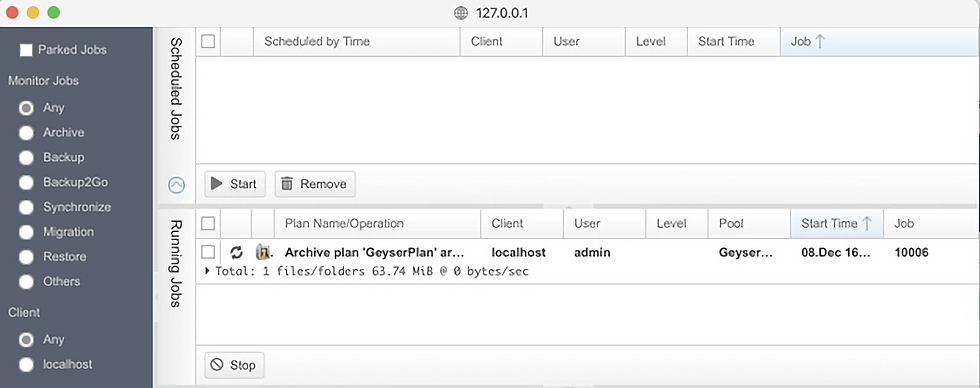
Monitor the progress
Finally, browse your Geyser Data Cloud Tape Library and ensure your data is there

Conclusion
Using Archiware with Geyser Data gives you secure, scalable cloud storage in a simple setup for back up & archival. Monitor your usage regularly & manage your buckets effectively. Refer to the Archiware help resources or contact Geyser Data support ([email protected]), if you need help.
Happy Geysering!
Comments